
TOC
How to export, import, and move any WordPress site with All-in-One WP Migration, plus the exact way to beat the famous 512 MB upload limit without paying.
- All-in-One WP Migration packages your database, media, themes, and plugins into a single .wpress file — no FTP, no database credentials, no command line required.
- The upload limit you hit is set by your server’s PHP configuration, not the plugin itself — raise upload_max_filesize and post_max_size to 512M (or higher) via .htaccess, .user.ini, php.ini, or your hosting control panel.
- After import, the destination’s user table is replaced by the source’s, so log back in with your old site’s admin credentials, not the ones you set up on the new host.
- If your host hard-caps PHP limits, the Unlimited Extension at $69/year chunks the upload into pieces that slip past the cap — for very large sites (1 GB+) an off-server tool like Migrate Guru is a better fit entirely.
- A site-wide 404 right after import almost always means you skipped the permalink rebuild — go to Settings > Permalinks and click Save Changes twice to regenerate the rewrite rules.
What All-in-One WP Migration does (and why people love it)
WordPress migration all in one. That is the promise, and this plugin mostly keeps it. All-in-One WP Migration is the simplest way I know to move a WordPress site. It packages your database, media, themes, and plugins into a single .wpress file you export from one site and import into another. No FTP. No database credentials. No command line. It is also the most-installed migration plugin on WordPress.org, sitting at 5+ million active installations and a 4.5-star rating across more than 7,600 reviews (WordPress.org).
I have run a lot of migrations over the years, and most of the big ones were custom jobs built around export scripts and redirect maps. Plenty of my work is smaller though. I have moved a steady stream of small and mid-size client sites, often little shops and service businesses that came off Wix or Squarespace and finally landed on a clean WordPress install. For those, a plugin like this one is simply the right tool. When a client has a tidy WordPress site that needs to hop to a new host or domain, this is what I reach for first. It is fast. It is free. And it does not ask the client to learn a single new thing.
Here is what the guide walks through. First the full workflow, meaning install, then export, then import. After that it spends real time on the one thing everyone actually searches for, which is the upload-limit error. You will get the exact fix for free, plus the paid route for anyone who would rather not open a config file.
Want the broader picture before the steps? The complete WordPress migration guide covers planning, DNS, and cutover. To see how this plugin stacks up against the rest of the field, the best WordPress migration plugins roundup lines them all up.
Step 1: Install All-in-One WP Migration on both sites
You install the plugin twice. Once on the source site you are leaving, and once on the destination site you are moving to. The destination needs to already have a working, fresh WordPress install waiting.
- In the source site’s dashboard, go to Plugins > Add New.
- Search for All-in-One WP Migration by ServMask and click Install Now, then Activate.
- Do the same install and activation again on the destination site.
That is the whole setup. A new All-in-One WP Migration menu item shows up in the dashboard sidebar on both sites.
What actually gets migrated
Knowing exactly what travels inside the .wpress file saves you from nasty surprises on the other side. Three things ride along. The full database goes first, which means your posts, pages, comments, users, and every plugin and theme setting that lives in the options tables. The entire media library in wp-content/uploads goes next. Finally all your themes and plugins travel too, active and inactive alike.
One detail bites people. Because the user table comes along for the ride, the destination’s logins get replaced by the source’s after import. Plan on using the source credentials to log back in.
Step 2: Export your site to a .wpress file
The export bundles everything into one portable file.
- On the source site, go to All-in-One WP Migration > Export.
- If you want a smaller file, open Advanced options and exclude what you do not need. Spam comments, post revisions, and inactive plugins all add weight you can drop.
- Click Export To > File. The plugin builds the
.wpressarchive on the server. - Once it finishes, click the green Download button and save the
.wpressfile to your computer.
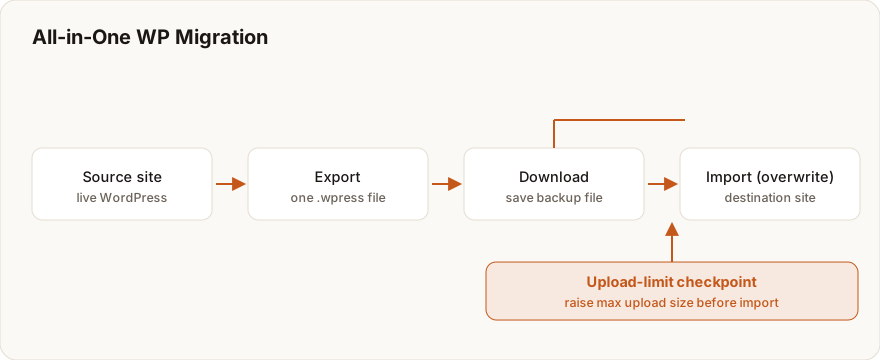
Now watch the file size on that download button. That number is the whole game. It has to fit under the destination’s import limit, and if it comes in over roughly 512 MB, go read the upload-limit fix below before you even open the import screen. I have watched more than one person skip that step and then sit there confused, staring at a rejected upload.
One nice touch worth knowing. The exported file carries a serialized snapshot of your URLs, which is how the importer rewrites them automatically on the other side.
Step 3: Import the file on the destination site
Now move the archive into the new site.
- On the destination site, go to All-in-One WP Migration > Import.
- Drag the
.wpressfile into the import box, or click Import From > File and pick it. - The plugin warns that it will overwrite the destination’s database, media, plugins, and themes. On a fresh install that is exactly what you want, so confirm and let it run.
- When it finishes, follow the prompt to save your permalinks twice (Settings > Permalinks > Save). That rebuilds the rewrite rules.
- Log back in with the source site’s admin credentials, since the import swapped the destination’s user table for the source’s.
That is a complete migration. Did the import box reject your file for being too large? Then you have hit the upload limit, and the fix is next.
The upload-limit fix (the part everyone needs)
Here is the part everyone comes for. You try to import a .wpress file and the plugin tells you it exceeds the maximum upload file size, usually flagged as a 512 MB limit. It looks like a brick wall. It is not. Once you understand where the number comes from, the fix takes about two minutes.
Bigger sites feel this harder. One project that taught me the ceiling cold was a building-materials and tile catalog carrying roughly 2,000 products. A store like that drags a heavy media library and a bloated database behind it, so the archive balloons fast and blows straight past 512 MB. Smaller client sites? You might never see the limit at all. On a catalog that size it was the very first wall I hit, before I had even started thinking about anything else. It is the exact same wall every single time too, which is oddly the good part, because the fix below never changes.
Why the limit exists
Blame your server, not the plugin. The number is not set by ServMask. The import UI just reads your server’s wp_max_upload_size(), which WordPress works out from your PHP upload_max_filesize and post_max_size settings. In other words the plugin is honestly reporting your host’s configuration back to you (ServMask blog). Raise those PHP values and the limit climbs right along with them.
The values to set
ServMask recommends 512M for the upload and post limits, 256M for the memory limit, and 300 seconds for the timeouts (ServMask blog). Got a .wpress file bigger than that? Push the numbers higher to match. Here is the target config.
upload_max_filesize = 512M
post_max_size = 512M
memory_limit = 256M
max_execution_time = 300
max_input_time = 300
Pick the method your host supports
You only need one of these to land. Work down the list in order, because the right one depends entirely on your server.
Method A, the .htaccess route (Apache hosts)
Open the .htaccess file in your WordPress root directory and add this block.
php_value upload_max_filesize 512M
php_value post_max_size 512M
php_value memory_limit 256M
php_value max_execution_time 300
php_value max_input_time 300
Method B, the .user.ini route (LiteSpeed and Nginx hosts)
Create or edit .user.ini in your WordPress root and drop in the same five values.
upload_max_filesize = 512M
post_max_size = 512M
memory_limit = 256M
max_execution_time = 300
max_input_time = 300
Method C, editing php.ini directly
Can you reach the server’s php.ini? Then add those same five lines, just without the php_value prefix. When you have real server access, this is the most reliable route of the bunch.
Method D, the hosting control panel
No stomach for editing files? cPanel, Plesk, SiteGround Site Tools, and Hostinger hPanel all surface PHP settings in a GUI. Hunt for a MultiPHP INI Editor or PHP options panel and raise the same values from there.
upload_max_filesize and post_max_size for you, or skip ahead to the alternatives below.One last check. After you change the values, reload the Import page and confirm the new maximum shows before you upload anything.
Alternatives when you can’t (or won’t) edit PHP
Maybe your host locks PHP settings tight. Maybe you just have no interest in touching config files. Either way, three solid options are open to you.
1. Buy the Unlimited Extension
ServMask’s official Unlimited Extension costs $69/year and covers 50 sites (ServMask blog). Rather than push one giant upload, it sends the archive in small chunks, which slips right past the host’s per-upload cap. It is the cleanest paid fix going, and the one ServMask itself points locked-host users toward.
2. Switch to a plugin that runs off your server
On a large site the upload limit is rarely the real issue. It is a symptom of server-bound migration. Back on that 2,000-product catalog I chased the numbers up first, the way this guide tells you to. I pushed upload_max_filesize and post_max_size well past 512 MB and bought myself a little room. Then the import simply started timing out instead, halfway through a database that size, and I was right back where I started. That is the moment it clicked for me that the cap was never the real problem, just the first symptom of moving a heavy site through a browser. At that scale an off-server tool is the calmer path by a mile. Migrate Guru runs the whole migration on remote servers and handles sites up to 200 GB for free, so upload limits never enter the picture (WordPress.org). The plugin comparison covers exactly when to make this jump.
3. Use a portable archive instead
Duplicator builds an installer you upload over FTP and run straight on the destination. Because the data never travels through a browser upload, the dashboard import limit simply does not apply.
Which alternative fits your situation
Choose based on why the fix is blocked, not on what feels nicest. If your host hard-caps PHP and you want to stay inside this plugin, the Unlimited Extension is the direct answer. If your file is genuinely large, say 1 GB or more, then the upload limit is masking a scaling problem and you should move to Migrate Guru and let it run off-server. And if you already have FTP access and are comfortable working with files, Duplicator’s installer route is free and skips the browser upload completely.
I dig into all three in the migration plugin comparison, so you can match the tool to your exact constraint instead of guessing at it.
Useful All-in-One WP Migration extensions
Past the Unlimited Extension, ServMask sells a handful of add-ons that turn the plugin into a fuller toolkit (WordPress.org). Here are the ones actually worth knowing about.
| Extension | What it adds | Best for |
|---|---|---|
| Unlimited | Removes host upload limit via chunked transfer ($69/yr, 50 sites) | Large files on locked hosts |
| Multisite | Export/import WordPress Multisite networks and extract single subsites | Network admins |
| Cloud Backup & Migration | Direct backup to Dropbox, Google Drive, OneDrive, and more | Off-site storage and scheduling |
| Database Filtering | Find-and-replace and selective table export | Cleaning data during the move |
For a one-off migration you rarely need anything past the free plugin, and the Unlimited Extension only if your file outgrows your host. I have bought that add-on for exactly one reason over the years, an oversized export sitting on a locked host. Never once regretted the $69.
Common All-in-One WP Migration problems
Past the upload limit, a few issues keep showing up. These are the ones I see most.
Import stalls or times out
Nine times out of ten this traces back to max_execution_time or memory_limit sitting too low. Raise both with the methods above. On a genuinely large site, move to an off-server tool instead and save yourself the fight.
“All-in-One WP Migration not working” after import
Pages throwing 404s right after a clean import? You skipped the permalink rebuild. Go to Settings > Permalinks and click Save Changes twice. This one trips people up constantly. The import actually worked, but the rewrite rules never regenerated, so every URL except the homepage falls over. And if your images refuse to load, check that the wp-content/uploads path lines up with the new domain.
The file is huge for no obvious reason
Usually it is junk riding along. Cache folders, backups someone stashed inside wp-content, and bloated revision tables all puff up the export. Pop open the export Advanced options to leave them out, or clear your caches first.
For a fuller catalogue of post-migration errors and how to clear them, the dedicated plugin guide goes deep. And running a free pre-migration audit first catches a lot of this before you ever hit Export.
When to let a professional run the move
All-in-One WP Migration shines on small-to-medium sites, and the upload-limit fix above clears the one roadblock most people ever hit. For a personal site or a small business site, honestly, this guide is the whole job.
Here is the catch I always flag to clients, though. The plugin only copies files. It will not plan your redirects, coordinate the DNS cutover, fix the database and SEO snags that surface halfway through a move, or check that nothing quietly broke afterward. On a store, a lead-generating site, or anything carrying traffic you cannot afford to lose, that orchestration is the actual work, and one failed import can mean real downtime. A managed WordPress migration runs the full sequence with a tested rollback, so a problem never reaches your visitors in the first place.
So here is the honest split. Straightforward move? Follow the steps above and you are done. Business-critical move? Have it handled for you, and start with a free pre-migration audit so you know exactly what you are moving before anything touches production.
Frequently asked questions
Planning a migration and want it done without losing rankings?
Redirect maps, an SEO-safe cutover and post-launch checks, handled start to finish.
WordPress Migration Service →Is your site costing you customers?
Enter your website and get a free 60-second performance, SEO & accessibility report.
~60 seconds · No login