
TOC
Everything you need to move a WordPress site to a new host, domain, or platform without breaking SEO, losing data, or going down.
- A WordPress migration moves two halves — the files AND the database — and forgetting the database is the single most common reason a moved site lands blank.
- There are five distinct migration types, from a simple host move where URLs stay identical to a full headless re-architecture, and picking the wrong playbook for your type is the leading cause of lost traffic.
- For most standard host moves a migration plugin is fastest; manual migration suits large sites or restrictive hosts; a done-for-you service is the right call the moment a botched move would cost real money.
- Changing domain or URL structure requires a complete 301 redirect map plus a Change of Address filed in Google Search Console, and those redirects need to stay in place for at least a year.
- A small or medium site can take a few weeks for rankings to fully settle after the switch — a brief dip is normal, but a sustained slide means a redirect or indexing problem you need to chase down fast.
What is a WordPress migration?
Picture your whole site lifted off one server and set down on another, with nobody visiting it any the wiser. That is the win condition. You are moving the files, the database, the media library, and the configuration from one home to a new one, and the site has to behave exactly as it did before. The new home might be a faster host. It might be a new domain after a rebrand. Sometimes it is a different server, and sometimes it is a whole other platform that you are dragging your content onto WordPress. Do it well and visitors never notice. Do it badly and you get downtime, broken links, missing images, and a quiet slide down the rankings.
I have run a lot of these, from one-page small-business sites up to large content-heavy platforms with hundreds of articles and no clean export button anywhere. On jobs like that, the standard importer needs a custom script to chew through the legacy content and spit it back out as WordPress WXR before anything can move. The brief is always easy to say and brutal to deliver: move every article into a modern, manageable publishing environment, and lose not one of them. The first import can look fine until you open the articles and find half the formatting has quietly collapsed. This guide is the start-to-finish reference I wish someone had handed me the first time I hit that problem.
So here is what you walk away with. The types of migration. How to choose between a plugin, a manual transfer, and a done-for-you service, plus a master comparison of all three. A pre-migration checklist. The full step-by-step process. How to hold onto your SEO with redirects. The errors that bite people most often, and how to fix them. Realistic timelines and costs. By the end you will know what your move actually involves and which path to take.
And this is not some niche problem. As of June 2026, WordPress runs roughly 43% of all websites on the internet and holds close to a 60% share of the CMS market, per W3Techs usage statistics. Sites outgrow their hosting. Brands rebrand. Businesses get tired of paying rent on a closed platform and move to something they actually own. Every one of those is a migration.
What actually moves during a migration
Every WordPress site is really two halves stitched together, and a migration has to carry both across.
- The files. WordPress core, your active theme, every plugin, and the whole
/wp-content/uploads/media library. These sit on the server’s filesystem. - The database. A MySQL or MariaDB database holding your posts, pages, comments, users, settings, and most plugin data. This is the half beginners forget. Forgetting it is exactly why “I copied the files and the site is blank” is one of the most common migration failures going.
Two settings also have to change so the copied site knows where it now lives. One is the database connection in wp-config.php. The other is the site URL, which means the siteurl and home values plus every hard-coded URL buried inside your post content. Miss either and you land on the classic blank screen or a redirect loop.
The 5 types of WordPress migration
“Migration” is an umbrella word. The right method hangs entirely on which type you are doing, so pin yours down first. There are five, running from dead simple to genuinely involved. Reach for the wrong playbook and you have just lined up the single most common cause of lost traffic after a move.
One more distinction worth pinning down before you pick a type: if the real goal is a fresh look or better UX on a site that is staying put — same WordPress, same host, same URLs — that is a website redesign, not a migration. Different project, different playbook, and knowing which one you actually need keeps you from paying for the wrong one.
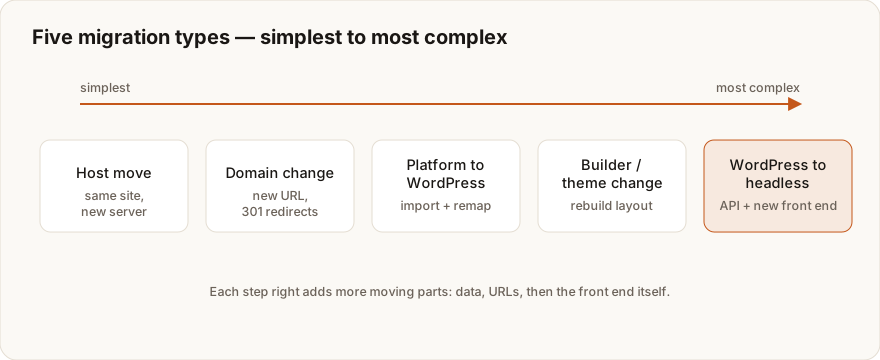
1. Host move (same WordPress, new server)
The everyday one. Your site stays WordPress and keeps its domain, you just move it to faster or cheaper hosting. The content does not change at all. You copy the files and database to the new server and point DNS at it. It is the cleanest type because no URLs change, so SEO barely feels it. The full walkthrough lives in the dedicated guide on migrating WordPress to a new host or server.
2. Domain change (new web address)
Same WordPress, different address. Think a rebrand from oldbrand.com to newbrand.com, or finally ditching a .wordpress.com subdomain for your own name. This one is riskier for SEO. Every URL changes, so a complete search-and-replace and a full set of 301 redirects are not optional. It often rides along with a host move, and the same new-host and new-domain guide covers the URL-change mechanics in depth.
3. Platform to WordPress (escaping a closed builder or CMS)
You are leaving another platform behind and rebuilding on WordPress for the control, ownership, and SEO it hands you. The source platform decides the method, so each one gets its own guide.
- Coming off Squarespace, you export the blog and pages cleanly, then rebuild products and styling. Full steps in Squarespace to WordPress.
- Wix gives you no clean export at all, so you import via RSS and rebuild the design. See Wix to WordPress.
- From Shopify you move products, orders, and customers into WooCommerce. Walkthrough in Shopify to WordPress (WooCommerce).
- HubSpot means migrating CMS Hub pages, the blog, and forms, then guarding the redirects. Covered in HubSpot CMS to WordPress.
- Joomla maps articles and categories across with the FG Joomla importer. Steps in Joomla to WordPress.
- Drupal is about mapping content types onto WordPress custom post types. See Drupal to WordPress.
4. Builder or theme change (same site, new look)
Sometimes the “migration” never leaves the building. You are switching page builders (Elementor to the block editor, Divi to a block theme) or just changing themes. The content stays put. The layouts, shortcodes, and builder-specific markup are what break. So it is less a transfer and more a careful rebuild on a staging copy of the same site. The staging and testing techniques here apply straight away.
5. WordPress to headless (new frontend, same CMS)
The advanced end of the spectrum. You keep WordPress as the content backend and swap its theme-rendered frontend for a modern JavaScript framework that pulls content over an API. The payoff is far faster page loads and an app-like feel, while your editors keep the WordPress dashboard they already know. The guide on migrating WordPress to a headless Next.js frontend walks the WPGraphQL approach. It happens to be a specialty of jbe.works WordPress Migration.
Plugin vs manual vs done-for-you service
Whichever type you have landed on, there are three ways to actually pull it off. Each one trades control, speed, and risk in a different mix.
Method 1 – a migration plugin (the default for most sites)
A migration plugin bundles your files and database into one archive on the old site, then unpacks it on the new one. For the vast majority of host moves and domain changes this is the fastest, safest road, and plenty of plugins are free. The catch is file-size limits on the free tiers, plus the odd timeout on very large sites.
Start with the comparison of the best WordPress migration plugins. Then go deep on the two heavyweights. The All-in-One WP Migration guide covers its famous upload-limit fix, and the Duplicator migration walkthrough handles the other big one.
Method 2 – a manual migration (maximum control)
A manual migration moves the files over FTP or SFTP, exports and imports the database by hand with phpMyAdmin or WP-CLI, then runs a safe search-and-replace on URLs. It works on any host. It has no file-size ceiling. It also teaches you exactly how the pieces of WordPress fit together. And it is completely unforgiving of mistakes. The whole process lives in the manual WordPress migration guide (no plugin), which walks the database export, wp-config.php, and serialized-data-safe URL replacement.
Method 3 – a done-for-you migration service
Here a professional takes the whole move off your plate. Planning, staging, the transfer itself, redirects, testing, a rollback plan, and a guaranteed result. It is the right call for revenue-critical sites, large or complex stores, platform-to-WordPress rebuilds, and headless re-architectures, the situations where a botched migration costs far more than the service ever would. That is the exact job jbe.works WordPress Migration exists to do.
My own rule of thumb is simple. A plugin for most standard moves. Manual when I need total control or the plugin smacks into a limit. A managed service when downtime or data loss would genuinely hurt the business.
Plugin vs manual vs service: master comparison
Use this table to pick a method at a glance. “Best for” is the column that matters most. Match your situation to the row, not the other way around.
| Factor | Migration plugin | Manual migration | Done-for-you service |
|---|---|---|---|
| Difficulty | Low (point and click) | High (FTP, SQL, search-replace) | None for you |
| Time (your hands-on) | 15–60 minutes | 1–4+ hours | A short kickoff call |
| Cost | Free to ~$69–$199/yr | Free (your time) | ~$150–$2,000+ per project |
| Site-size limit | Free tiers cap uploads; large sites may time out | None (handles any size) | None (handled for you) |
| Risk of error | Low | High if inexperienced | Lowest, with rollback |
| SEO / redirects handled | You configure | You configure | Included and verified |
| Best for | Standard host move or domain change | Devs, huge sites, restrictive hosts | Revenue-critical, complex, or platform/headless moves |
Routine host move, site under a few hundred megabytes? A plugin is almost always the answer. Moving an online store, switching platforms, or staring down a hard no-downtime requirement? A managed WordPress Migration service takes the risk off the table.
The pre-migration checklist
Most failed migrations are lost before the transfer even begins. So work through this checklist first. It is the whole difference between a five-minute switch and a weekend of firefighting.
Back up everything (twice)
Take a full backup of files and database, then stash a copy somewhere off the server, on your own machine or in cloud storage. The migration itself is just a copy. The backup is your undo button when something goes sideways. Never migrate a site you cannot restore.
Inventory the site
- Note your WordPress version, the active theme, and the full plugin list.
- Measure total size, meaning the database plus the
uploadsfolder, so you can pick a method that can actually carry it. - Write down anything custom. Cron jobs,
.htaccessrules, email accounts tied to the domain, any hard-coded paths.
Prepare the destination
- Confirm the new host meets WordPress requirements (PHP 8.x, MySQL 5.7+/MariaDB 10.4+, HTTPS).
- Create the empty destination database and a database user, and keep those credentials handy.
- If you can, work on a temporary URL or staging subdomain so you can test before you flip DNS.
Lower DNS TTL and freeze content
A day out, drop your domain’s DNS TTL (300 seconds works well) so the cutover propagates fast. Then freeze the old site for a short window. No new posts, orders, or comments while the move is in flight, so nothing created mid-migration slips through the cracks.
Plan SEO continuity
Changing URLs? Export your current URL list now and draft the redirect map before you touch anything. Keep the old XML sitemap close and have Google Search Console access ready. Honestly, this is where most DIY moves quietly bleed traffic, so I treat it as the real work of a migration rather than an afterthought. Do these items in order. Every minute here buys back an hour later.
How to migrate WordPress: step by step
This is the universal spine behind every migration type. Plugins automate steps 2 through 5. A manual move does them by hand. A service does the lot for you. Knowing the flow is what lets you catch trouble before it spreads.

Step 1 – back up the source site
Create and download a full backup of files and database. That is your rollback point. The checklist above spells it out, and no, do not skip it.
Step 2 – package or export the site
With a plugin, generate the migration archive on the old site. By hand, pull the /wp-content/ folder (and core if you need it) over SFTP, then export the database to a .sql file with phpMyAdmin or wp db export.
Step 3 – move everything to the destination
Upload the archive (or the raw files) to the new server and create the destination database. Then restore the plugin package, or import the .sql file and drop the files into the new web root.
Step 4 – update wp-config.php
Point wp-config.php at the new database. Set DB_NAME, DB_USER, DB_PASSWORD, and DB_HOST to the destination’s values. One wrong value here and you get the classic “error establishing a database connection.”
Step 5 – search-and-replace URLs (if anything changed)
If the domain or a path changed, you have to update every reference, including the URLs serialized inside post content and options. Reach for WP-CLI’s safe replacer, never a blind SQL find-and-replace. The blind version quietly mangles serialized data.
wp search-replace 'https://oldsite.com' 'https://newsite.com' --all-tables --precise --recover-from-backupHost-only move with the URL unchanged? Skip this step completely.
Step 6 – test on the new server before going live
On a temporary URL, a hosts-file entry, or a staging domain, click through the homepage, your key landing pages, forms, checkout, and the admin dashboard. Confirm images load, menus work, and the console is clean. Fix it all right here, while the old site is still serving real traffic. “Migrate, then debug live” is how sites end up down for hours.
Step 7 – switch DNS and go live
Once the copy passes, point your domain’s A record or nameservers at the new host. You lowered the TTL earlier, so propagation moves fast. Leave the old server running until DNS has fully propagated and you have confirmed the new site is serving everyone.
Post-migration SEO: redirects and URL preservation
The technical move is only half the job. Change domains or URL structure and search engines have to be told where everything went, or you forfeit rankings you spent years earning. Nail it and you keep nearly all your traffic. Fumble it and you can watch most of it vanish overnight.
Let me give you the honest pattern I keep running into. The content move is usually the easy part. Hanging onto the years of SEO value baked into that content is the war. Take a deep archive of research publications or articles coming off a legacy CMS. Moving the words across barely registers. The taxonomy and the redirects are what nearly bury you. Each piece can belong to many classifications at once, a tangled many-to-many web, and WordPress has to be taught to hold every one of those relationships exactly as the old system did. Then hundreds of legacy article URLs each need a destination, and not a random one. Every mapping has to respect that taxonomy so rankings, authorship signals, and backlinks all survive the trip. On a job like that you can lose count of the redirect maps you build, test, and tear up. Treat redirects as the main event, not the cleanup crew.
Preserve URL structure wherever possible
The safest migration touches nothing about your URLs. Keep the same permalink structure and slugs so old links still land. Wherever I can, I replicate the original URLs exactly, so the content sits right where it always sat and nothing needs redirecting at all. When you genuinely must change them, say a domain move, or a platform-to-WordPress shift where the old CMS used a different format, capture every old URL and pair it with its new equivalent.
Implement 301 redirects
A 301 is a permanent redirect, and Google confirms that 301 and other permanent redirects pass full ranking signals to the new URL. Per Google’s redirects documentation, you should “use server side permanent redirects if technically possible,” such as 301 and 308. Send each old URL straight to its final home. Skip the chains. Google advises keeping any chain under five hops.
# Example .htaccess 301 redirect for a single moved page
Redirect 301 /old-page/ https://www.newsite.com/new-page/
For a domain change, file a Change of Address
When the domain itself changes, Google’s site-move guide tells you to submit a Change of Address in Search Console for the old domain (and the www and non-www variants), then hold the redirects for at least a year so Google can ferry every signal across. A plain host move with the same domain skips this entirely.
Update sitemaps and internal links
- Generate a fresh XML sitemap on the new site and submit it in Search Console.
- Repoint internal links at the final new URLs so users and crawlers never bounce through a redirect for no reason.
- Leave the old sitemap up for a few months so Google re-crawls and finds the redirects faster, then retire it.
Monitor after launch
For the first few weeks, keep an eye on Search Console’s Coverage and Performance reports alongside your analytics. Google notes that a small or medium site can take a few weeks for most pages to move across, and bigger sites take longer. A brief dip is normal. A sustained slide means a redirect or indexing problem you need to chase down. Catching crawl errors early is what splits a smooth move from a traffic disaster.
Common migration errors (and how to avoid them)
A small handful of errors are behind almost every “my migration broke” support thread. Learn them ahead of time and you dodge most of them, then fix the rest in minutes. The dedicated WordPress migration errors guide carries the full step-by-step fix for each one.
Error establishing a database connection
Nearly always wrong database credentials or the wrong host in wp-config.php. Re-check DB_NAME, DB_USER, DB_PASSWORD, and above all DB_HOST. On managed hosts it is rarely localhost.
White screen of death (HTTP 500)
Usually one of three things. A PHP memory limit. A plugin or theme that does not get along with the new server’s PHP version. Or a file that corrupted during transfer. Turn on WP_DEBUG, bump the memory limit, and deactivate plugins one by one to corner it.
Too many redirects
That is a redirect loop. It usually traces to mismatched siteurl and home values, a wrong HTTPS setting, or redirect rules fighting each other. Fix the site URL in the database and clear your caches.
404s on every page except the homepage
The homepage loads, every inner page throws a 404. That is a permalink and rewrite problem. Re-save permalinks under Settings then Permalinks, and check that mod_rewrite and the .htaccess rules actually came across.
Images not showing after migration
Broken image paths from a URL that never got search-and-replaced, or an uploads folder that did not fully transfer. Run the safe URL replacement, then confirm the media directory copied over in one piece.
See the pattern? Almost everything on this list rolls back to one of two root causes. Either the database is not pointed at the right place, or the URLs were not fully replaced. The redirect loops and the missing images especially tend to be a half-finished search-and-replace. That is the exact thing that bit me on early migrations, so it is the first thing I check now. Nail those two and most migration errors never get the chance to happen.
How long does it take, and what does it cost?
The honest answer? It depends on type, size, and method. Here are ranges I would actually stand behind.
How long does a WordPress migration take?
| Scenario | Hands-on time | Notes |
|---|---|---|
| Small site, plugin, same domain | 15–45 minutes | Package, restore, test, switch DNS |
| Medium site, plugin, domain change | 1–3 hours | Add search-replace and redirect setup |
| Manual migration | 2–4+ hours | FTP transfer plus DB export/import by hand |
| Platform-to-WordPress rebuild | Days to weeks | Content import plus theme/design rebuild |
| Headless re-architecture | Weeks | New frontend build against the WP API |
Those are hands-on hours, not calendar time. A large content migration — hundreds of articles, a custom WXR import, and every formatting break that import throws — can run about a month end to end, even though no single step on its own is exotic. The volume and the verification are what eat the calendar. DNS propagation is a separate clock. After the switch it can take anywhere from minutes to 48 hours, which is the whole reason you drop the TTL beforehand. And on Google’s side, give a small or medium site a few weeks for rankings to fully settle on the new URLs.
What does a WordPress migration cost?
- DIY with a free plugin. Zero dollars, plus your time. Tools like Migrate Guru move sites up to 200GB for free by running the job on their own servers.
- DIY with a premium plugin. Roughly $69–$199 a year for unlimited size, scheduling, or multisite support. All-in-One WP Migration’s Unlimited Extension, for instance, runs $69/year.
- Done-for-you service. Commonly $150–$500 for a straightforward move, climbing to $1,000–$2,000+ for stores, platform changes, or headless builds. A lot of hosts also throw in one free migration when you sign up.
So a routine plugin migration is free and done inside an hour. What you are really paying a service for is the guarantee, the rollback plan, and someone else carrying the downtime risk.
When to hire a professional
Plenty of migrations are perfectly safe to do yourself. Some, though, carry enough risk that paying a professional is the cheaper call once you price in downtime, lost orders, and SEO damage. Hire a pro the moment any of the following is true.
- The site makes money. An online store or a lead-gen site where an hour of downtime or one checkout bug bleeds real revenue.
- The site is large or complex. Big databases, a pile of plugins, custom code, or a multisite network. This is precisely where plugins time out and manual moves get fiddly.
- You are changing platforms. Squarespace, Wix, Shopify, HubSpot, Joomla, or Drupal to WordPress all bring content mapping and redirect strategy that reward experience.
- You cannot afford downtime or a ranking drop. When the margin for error is zero, a managed migration with a rollback plan earns its fee.
- You are going headless. A WordPress-to-Next.js headless migration is a full re-architecture, not a copy. Specialist territory, plainly.
Here is the line I draw after years of doing this. The moment a site has either real revenue flowing through it or years of SEO equity welded into its URLs, the cost of botching the move dwarfs the cost of having someone do it right. Scale only sharpens that: picture migrating a network of a dozen-plus legacy blogs onto a single enterprise WordPress platform, each one built on different software, all of it needing to clear a strict standard before anything ships. You do not learn that judgment from a tutorial. You earn it the hard way, by getting bitten on the projects where a wrong call would have cost a publisher its archive.
If any of that sounds like you, jbe.works WordPress Migration takes the whole move end to end (planning, staging, transfer, redirects, SEO preservation, testing, and a rollback safety net) so your site lands faster on the far side with nothing lost. Still on the fence? Run a free pre-migration audit first and see exactly what your move involves.
Your next step
You have the full picture now. What a WordPress migration is, the five types, the three methods and how they stack up, a pre-migration checklist, the universal step-by-step process, post-migration SEO with 301 redirects, the errors to dodge, and realistic timelines and costs. The pattern underneath all of it never moves. Back up, copy files and database, point the configuration and URLs at the new home, test before you switch, and protect SEO with redirects. After dozens of these, that last point is the one I would underline twice. The move itself rarely bites you. The SEO continuity does.
From here, drill into the guide that fits your move. Pick a tool from the best migration plugins. Follow the manual method. Squash a problem in the errors guide. Or jump to your source platform above. And if the site is revenue-critical, large, or switching platforms, skip the risk altogether with jbe.works WordPress Migration, a done-for-you move with redirects, testing, and rollback built in.
Frequently asked questions
Quick answers to the questions that come up most.
Planning a migration and want it done without losing rankings?
Redirect maps, an SEO-safe cutover and post-launch checks, handled start to finish.
WordPress Migration Service →Is your site costing you customers?
Enter your website and get a free 60-second performance, SEO & accessibility report.
~60 seconds · No login