
TOC
How to move WordPress to a new server or host with zero downtime, including the domain change, URL update, and DNS cutover done in the right order.
- Copy everything to the new host and test it on a temporary URL before changing DNS — visitors keep hitting the old host until the new one is verified, which is the only way to achieve zero downtime.
- Lower your DNS TTL to 300 seconds a day before the cutover so the change propagates in minutes rather than hours, and keep the old host running for at least a week as a rollback in case something surfaces after the switch.
- If only the server changes and the domain stays the same, you only need to update the four DB constants in wp-config.php — a domain change additionally requires a serialized-safe search-and-replace across the entire database.
- Never fire a plain SQL UPDATE to change stored URLs — WordPress serializes data with byte-length counts that a raw replace corrupts silently; use WP-CLI search-replace with –precise or a tool like Better Search Replace.
- Freeze content on the old site during the cutover window so posts, orders, or comments created mid-migration are not silently lost when the new database becomes live.
Moving WordPress to a new server, the right way
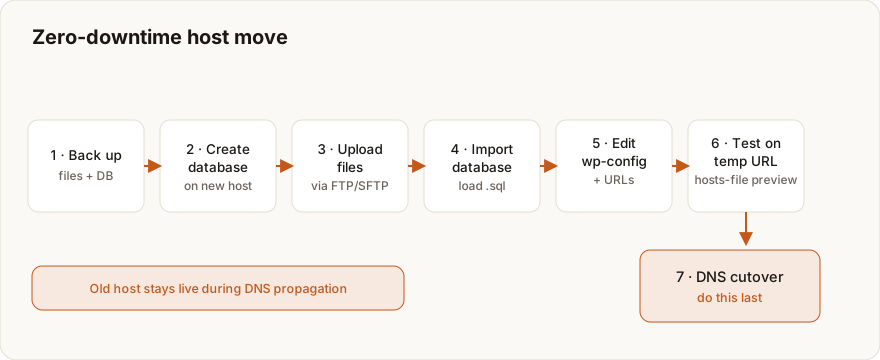
One rule carries a clean host move. Copy everything to the new host first, test it on a temporary URL, and only change DNS once the new site is verified working. Do it in that order and your visitors never see downtime. They keep hitting the old host until the new one is proven.
I have run host moves across a wide range of scale. Single small-business sites on one end. On the other, high-traffic sites with hundreds of articles where the cutover cannot afford a wobble, and networks of legacy blogs consolidating onto a single WordPress platform, where scale mostly multiplies the redirect surface. The safe sequence never changes at any size. You transfer the files and the database, update wp-config.php, handle any domain change and the URL update that comes with it, point DNS at the new server, then verify the result. Leaving a slow host or changing host and domain at the same time, the steps below hold up either way.
wp-config.php. A domain change means rewriting the URLs stored throughout the database. Plenty of migrations do both. Treat them as separate steps and nothing breaks.Prefer a hands-off move? A managed WordPress Migration handles the transfer, the URL update, redirects, and DNS cutover for you. To baseline your current site before moving, run a free pre-migration audit.
What you need before you start
Pull these together before you touch anything. Having them on hand turns a stressful move into a checklist you tick off.
- Access to the old host. FTP/SFTP credentials and database access (phpMyAdmin or similar).
- Access to the new host. FTP/SFTP, the ability to create a database and user, and a temporary URL or hosts-file method to preview.
- A full backup. All files plus a database export. This is your rollback.
- Your domain registrar login. You will change nameservers or DNS records at cutover.
- Matching PHP version. Confirm the new host runs a PHP version your theme and plugins support, to avoid a 500 error on arrival.
If you would rather move without a plugin and control every step yourself, the manual WordPress migration guide covers the file-and-database approach in depth. If you want a plugin to package the whole site, compare the best WordPress migration plugins first.
Move WordPress to a new server, step by step
Here is the full sequence, start to finish. Each step lines up with the structured how-to steps further down, so follow whichever format you like.
1. Back up the current site
Export the database from the old host (via phpMyAdmin or your panel) and download the entire site directory over FTP, including wp-content, wp-config.php, and .htaccess. Confirm the database .sql file and file archive are complete before continuing.
2. Create the database on the new host
In the new host’s control panel, create a new database, create a database user, and assign that user to the database with full privileges. Note the database name, user, password, and the host value (often localhost, sometimes 127.0.0.1 or a dedicated hostname).
3. Upload the files
Connect to the new host over FTP and upload your WordPress files, typically into public_html if this is the primary site. Let every file finish. Partial uploads cause errors that are miserable to trace later.
4. Import the database
Open phpMyAdmin on the new host, select the new (empty) database, and import your .sql file. Make sure the format is SQL and the partial-import option is unchecked.
5. Update wp-config.php
Edit wp-config.php on the new host so DB_NAME, DB_USER, DB_PASSWORD, and DB_HOST match the database you just created. Change only the values inside the quotes.
6. Update the URLs (if the domain changed)
If the domain is changing, update the stored URLs. For a simple change, set both fields in Settings → General, or override them in wp-config.php. For a thorough update that also fixes content, images, and serialized data, run a search-and-replace, covered in the next section.
7. Test on a temporary URL
Before changing DNS, preview the site on the new host using a temporary URL or by editing your local hosts file to point the domain at the new server’s IP. Click through key pages, check images, test forms and checkout.
8. Cut over DNS
Once verified, update your domain’s DNS (nameservers or A record) to point at the new host. Lower the TTL a day ahead so the change propagates fast.
9. Flush permalinks and clear caches
On the new live site, go to Settings → Permalinks → Save Changes to regenerate rewrite rules, then clear all caches. This prevents the classic post-move 404s.
Handling the domain change and URL update
Change the domain and every URL stored in the database has to change with it, or you get redirect loops, broken images, and dead internal links. Those URLs hide in posts, settings, menus, and serialized plugin data. A two-field change in Settings will not cover a real domain move.
Here is the part most guides skip past. If you are only switching servers and keeping the same domain, replicate the URLs exactly so every page stays at its old address. Do that and the move is invisible to Google. Nothing moved, so SEO barely feels it. The URLs are the thing I guard hardest. On the hardest kind of migration — a legacy CMS rebuilt on WordPress — the part that eats the most hours is never the content. It is the redirects. Hundreds of legacy article URLs, every one mapped to its new home, sitting on top of a deep many-to-many taxonomy where a single publication belongs to a fistful of categories at once. The content move itself is usually the easy half. Preserving the years of accumulated SEO value bolted to those URLs is the hard half, and a sloppy move bleeds rankings there without ever throwing an error.
The official URL settings
The official WordPress documentation spells out two fields under Settings → General. Site Address (URL) is where visitors reach your site. WordPress Address (URL) is where the core files live. Both want https:// and no trailing slash. WordPress also documents a RELOCATE method. Add define( 'RELOCATE', true ); to wp-config.php, hit wp-login.php on the new server to auto-update the Site URL, then strip the line out. Leaving it in is a security hole.
The thorough fix is a search-and-replace
For a real domain change, run a database search-and-replace that swaps old domain for new everywhere, serialized data and all. A raw SQL update corrupts that serialized data quietly. WordPress’s own WP-CLI tool unserializes, replaces, then re-serializes the safe way.
wp search-replace 'https://olddomain.com' 'https://newdomain.com' --skip-columns=guid --precise --dry-runPer the WP-CLI documentation, --dry-run reports what would change without touching anything, and --skip-columns=guid leaves the GUID column alone (rewrite it and you break feed-reader identity). Read the dry-run, then run it again without --dry-run. The full database walkthrough, phpMyAdmin alternative included, lives in the manual migration guide.
UPDATE at your URLs. WordPress stuffs serialized arrays (theme options, widgets, plugin settings) with byte-length counts baked in. A raw replace edits the text but not the count, and the data corrupts. Reach for a serialized-safe tool instead. WP-CLI search-replace does it, and so does a plugin like Better Search Replace.How to move with zero downtime
Downtime during a host move is optional, not inevitable. The trick is DNS timing and testing before cutover. Those two habits are the only reason a high-traffic site can change servers without a reader noticing. When thousands of people are reading articles while you are mid-cutover, you do not get to wing it. You lower the TTL, you test on a temporary URL until you are bored of clicking, and you flip DNS knowing exactly what they will land on.
Lower TTL in advance
Drop your DNS record’s TTL (time to live) to 300 seconds a day ahead of the move. Change DNS at cutover and the new value then propagates in minutes, not hours. I lower the TTL the day before every single cutover. Cheapest insurance in the whole process.
Test before you switch
Verify the new server works before DNS ever points to it. Use the host’s temporary URL, or add a line to your computer’s hosts file that maps the domain to the new server’s IP so only you see the new site. Then click through everything that matters. Homepage. Key pages. Images, forms, checkout. I run this pass myself on the hosts-file copy before a single visitor gets routed over. The only safe time to find a broken page is while you are still the only one looking at it.
Freeze content during the cutover
Between exporting the database and going live, avoid publishing posts, approving comments, or taking orders on the old site. Those changes live only in the old database and will be lost. For busy sites, schedule the cutover for a low-traffic window and keep the freeze short.
Keep the old host running
Do not cancel the old hosting immediately. Keep it live for a week or two after cutover so any visitors still hitting the old IP during DNS propagation see a working site, and so you have a rollback if something surfaces.
Verify the move and fix common issues
Run a short verification pass the moment DNS flips. Almost every post-move problem lands somewhere in the table below, and each row points to the detailed fix.
| Symptom after cutover | Likely cause | Fix |
|---|---|---|
| Database connection error | Wrong DB credentials in wp-config.php | Match all four DB values to the new host; grant the user access |
| Posts and pages 404 | Rewrite rules did not transfer | Settings → Permalinks → Save Changes |
| Too many redirects | Site URL mismatch or forced HTTPS | Set WP_HOME and WP_SITEURL; align SSL settings |
| Images broken | Old domain URLs in the database | Run a serialized-safe search-and-replace |
| 500 error | PHP version or memory mismatch | Match PHP version; raise memory; check error log |
Hit any of these and the WordPress migration errors guide carries the full cause-and-fix for each one. After that, confirm SSL is valid on the new host, resubmit your sitemap in Google Search Console if the domain changed, and put 301 redirects in place from old URLs to new. When the URL structure cannot stay put, this is where the slow, finicky work lives. On a network of legacy sites consolidating onto one platform, each one having grown up on different legacy software, the old URL patterns are inconsistent from one to the next, and reconciling them is a job with no shortcut. I map every old address to its new home before launch, then I walk the redirects one at a time and actually request each one to confirm it resolves. It is tedious. There is no clever way around checking that a 301 fires and lands where you meant. Visitors and search engines both have to arrive in the right place, and a single broken redirect in a map of hundreds is how you quietly lose the rankings the whole move was meant to protect.
A calm, ordered host move
Respect the order and none of this is hard. Back up. Copy the files. Create and import the database, update wp-config.php, fix the URLs for any domain change, test on a temporary URL, then cut over DNS dead last. Skip the testing or flip DNS too early and a calm migration turns into a stressful one fast. For SEO, the single best move is keeping the URLs identical wherever the host lets you.
If the site is mission-critical, or you are changing host and domain at the same time, a managed WordPress Migration takes on the transfer, the URL search-and-replace, redirect mapping, and a zero-downtime DNS cutover, with post-launch QA so nothing reaches your visitors broken. Start with a free pre-migration audit, or read the full WordPress migration guide for the bigger picture.
Frequently asked questions
Planning a migration and want it done without losing rankings?
Redirect maps, an SEO-safe cutover and post-launch checks, handled start to finish.
WordPress Migration Service →Is your site costing you customers?
Enter your website and get a free 60-second performance, SEO & accessibility report.
~60 seconds · No login