
TOC
A complete walkthrough for migrating WordPress by hand, covering files over FTP, a phpMyAdmin database export and import, wp-config edits, and a safe search-replace of URLs in the database.
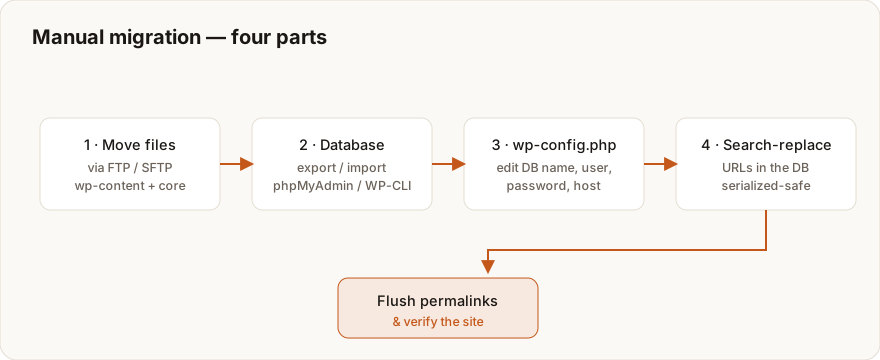
- A manual migration has four parts: move the files via FTP, export and import the database, update the four DB constants in wp-config.php, and run a serialized-safe URL search-replace — get comfortable with those and you can move any WordPress site with no upload ceiling.
- Never run a raw SQL UPDATE to change your site’s URLs — WordPress stores serialized arrays with byte-length counts baked in, and a blind replace edits the text without updating the count, silently corrupting theme options, widgets, and plugin data.
- The correct WP-CLI search-replace command is: wp search-replace ‘https://olddomain.com’ ‘https://newdomain.com’ –skip-columns=guid –precise –dry-run — always preview with –dry-run first, then re-run without it to apply.
- Assigning a database user to a database and actually granting it all privileges are two separate steps; skip the grant and you land on the ‘error establishing a database connection’ screen even with correct credentials.
- After import, go to Settings > Permalinks and click Save Changes without changing anything — this regenerates rewrite rules and prevents the site-wide 404 that follows almost every manual move.
Migrating WordPress manually, without a plugin
Four moving parts. That is the whole of a manual WordPress migration. You copy the files over FTP, you export and import the database, you point wp-config.php at the new database, and you run a search-replace to fix the old URLs sitting inside it. Get comfortable with those four and you can move any WordPress site by hand, with no plugin, no upload ceiling, and no black box doing things you can’t see.
I lean on the manual route most on the jobs no plugin can package cleanly — the kind where the content isn’t even WordPress yet when the move starts. It lives in an older blogging platform with no clean export, so the only way out is to build one. A custom export script that reads the legacy database and emits WordPress WXR, the XML the standard importer eats. That script is the whole job, and writing it is a grind. Real legacy data is filthy. Half-closed tags, mixed character encodings, author records that point at users who no longer exist, the odd post with a date the importer flat refuses. You write a pass, you run it against a sample, you open the result, you find the next thing it mangled, and you go again. The mechanics vary from job to job, but the mindset is the same one I want you to carry into a manual move. You decide what travels, and you verify it byte by byte.
About 43% of all websites run on WordPress, and roughly 60% of every site built on a known CMS, going by W3Techs. Moving one by hand is a skill worth having. Reach for it when your site is too big for the upload cap, when your host quietly blocks migration plugins, when a plugin migration has already failed on you, or when you simply want to understand what is happening instead of trusting a wizard. Want a tool to package the site for you instead? Compare the best WordPress migration plugins.
Rather skip the command line altogether? A managed WordPress Migration handles the move, the URL search-replace, and post-launch QA on your behalf. Doing it yourself? Run a free pre-migration audit first to baseline what you have today.
What you need before you start
Gather everything first. A migration should feel like working a checklist, not improvising under pressure halfway through. Here is what you want on hand before you touch a single file.
- An FTP/SFTP client such as FileZilla, plus credentials for both the old and new hosts.
- phpMyAdmin or direct database access on both hosts.
- The ability to create a database and user on the new host.
- WP-CLI access on the new host if you can get it. The URL search-replace is safer and faster with it.
- A full backup of files and database. That backup is your rollback when something goes sideways.
This is the same kit I reach for moving between servers. Doing a straight host change with a DNS cutover? Pair this with the moving WordPress to a new host guide, which walks through the zero-downtime timing.
Step one, move the files via FTP
The files are everything sitting in your WordPress directory. Your wp-content folder holds the themes, plugins, and uploads media, and alongside it live wp-config.php, .htaccess, and the WordPress core files. All of it has to travel.
Download from the old host
Point FileZilla at the old host, open public_html or your site’s root, select the lot, and pull it down to your computer. Big media libraries are slow. Let the transfer finish completely before you do anything else, because a half-downloaded directory is one of the most common roots of post-migration errors such as missing images.
Upload to the new host
Now connect FileZilla to the new host and push the files into its public_html for the primary site. Keep the folder structure identical. Once the upload is done, set folder permissions to 755 and file permissions to 644 so the server can actually read and serve them.
There is a shortcut if you only care about the content and not the core. Install a fresh WordPress on the new host, then upload nothing but wp-content. I tend to move the whole directory anyway. Copying everything guarantees the exact same themes, plugins, and versions on both ends, which quietly kills off an entire family of “worked on the old host, breaks on the new one” surprises.
Step two, export the database
Here is the part people forget. Your content does not live in the files. Posts, pages, settings, users, comments. All of that sits in the database, so the database has to move too.
Find the database name
Open wp-config.php on the old host. Whatever follows define('DB_NAME', ...) is your database name. Write it down somewhere you’ll find it.
Export with phpMyAdmin
- Open phpMyAdmin on the old host and pick your database from the left sidebar.
- Click the Export tab.
- Leave it on the Quick method and SQL format for a standard export, then hit Go to download a
.sqlfile. - Got a large database? Switch to Custom, turn on “Add DROP TABLE” so re-imports overwrite cleanly, and think about gzip compression while you’re there.
Or export with WP-CLI
One command does the whole thing if you have shell access.
wp db export backup.sqlThat drops a backup.sql you can ship to the new host. It is faster than the GUI and it walks right past phpMyAdmin’s upload limits, which is exactly why I default to it on anything sizeable.
Step three, create and import the database on the new host
Time to build the destination database and pour your data into it.
Create a database and user
In the new host’s control panel, open cPanel’s “MySQL Databases” or whatever it’s called there. Create a database. Create a user. Then assign that user to the database with all privileges. This last part matters more than it looks. Making a user is not the same as giving it access, and skipping it lands you on the error establishing a database connection screen. It catches people constantly. When a fresh import refuses to connect, it is the first thing I check.
Import with phpMyAdmin
- Open phpMyAdmin on the new host and select the new, empty database.
- Click the Import tab, choose your
.sqlfile, confirm the format reads SQL, and leave “Partial import” unchecked. - Click Go and wait for the success message.
Or import with WP-CLI
Upload backup.sql to the new host, then run one line from the command line.
wp db import backup.sql.sql file is bigger than phpMyAdmin’s upload limit, the import either dies silently or times out on you. Lean on WP-CLI’s wp db import, or go straight to the shell with mysql -u USER -p DBNAME < backup.sql. The command line has no web-upload cap.Step four, update wp-config.php
WordPress on the new host still has no idea where its database lives. You tell it. Open wp-config.php on the new host and update the four connection constants so they match the database you just built.
define( 'DB_NAME', 'new_database_name' );
define( 'DB_USER', 'new_database_user' );
define( 'DB_PASSWORD', 'new_database_password' );
define( 'DB_HOST', 'localhost' );
Touch only the values inside the quotes. DB_HOST is localhost on most setups, though some hosts want 127.0.0.1 or a dedicated database hostname, so check their docs if localhost doesn’t take. The site should load now. Images and links may still point at the old domain until you finish the next step, and that is expected.
While the file is open, make sure $table_prefix matches your imported tables. Usually it’s wp_. Sometimes it isn’t, and a mismatch makes WordPress act as though the whole database is empty. I have burned real hours on a blank-looking site that came down to a single character of prefix being off.
Step five, search-replace the URLs in the database
This is where DIY migrations fall apart. Your database is stuffed with absolute URLs pointing back at the old domain. They hide in post content, in settings, in menus, in serialized plugin data. Leave them and you get broken images, dead links, and redirect loops. Now here is the trap. You cannot fix them with a plain SQL UPDATE, and once you see why, you’ll never try.
Why a raw SQL replace corrupts your site
WordPress leans on serialized PHP arrays all over the database, storing theme options, widgets, and plugin settings that way. The WP-CLI documentation spells it out. Those serialized strings carry their own byte-length counts. A blunt find-and-replace swaps the URL text but leaves the recorded length untouched, and the moment the count no longer matches the string, the data turns unreadable and breaks without a peep. So please, never run anything like the line below on a real site.
-- DO NOT DO THIS: it corrupts serialized data
UPDATE wp_options SET option_value = REPLACE(option_value, 'https://olddomain.com', 'https://newdomain.com');
I have spent more of my career than I’d care to admit writing converters for content that fought back. One job sticks with me. A regional building-materials store, somewhere around 2,000 products, every page welded into Divi Builder shortcodes and proprietary markup with paid plugins fused on top. The content was effectively trapped inside Divi. A simple replace was never on the table. So I wrote custom parsing scripts that walked every single product, page, and post, tore out the builder markup, and rewrote it as clean, plain WordPress. That was not one tidy script. It was a dozen rewrites. Every batch surfaced a shortcode shape I hadn’t accounted for, a nested layout module, an attribute the last pass had quietly dropped. Run it, spot-check fifty products, find the breakage, patch the parser, run it again. Performance jumped by more than 200 percent once the Divi weight was gone. The principle it burned into me is small but absolute. When data is structured, you respect the structure or you destroy it. A serialized URL is that same problem, shrunk down to one row.
The correct way is WP-CLI search-replace
WP-CLI does the careful version. It unserializes the data, swaps the URL, then re-serializes with the byte counts fixed. Preview every time with --dry-run, and leave the GUID column alone.
wp search-replace 'https://olddomain.com' 'https://newdomain.com' --skip-columns=guid --precise --dry-runStraight from the docs, --dry-run reports the changes without writing them, --precise forces PHP processing so serialized data survives, and --skip-columns=guid shields post GUIDs, which feed readers treat as permanent IDs. Dry-run looks right? Run it for real.
wp search-replace 'https://olddomain.com' 'https://newdomain.com' --skip-columns=guid --preciseNo command line? Use a safe tool
No shell access, no problem. The Search Replace DB script by interconnect/it and the Better Search Replace plugin both handle serialized data the right way. Upload the script, run the dry-run, apply the change, then delete the script the second you’re done. Leaving it sitting on a live server is a genuine security hole.
Step six, finalize and verify
Two quick steps separate a working copy from a clean live site.
Flush permalinks
Log into the new site. Head to Settings → Permalinks → Save Changes and don’t change a thing. The act of saving regenerates the rewrite rules and rebuilds .htaccess, which is what stops that classic site-wide 404 from showing up after a manual move.
Verify everything
Now walk the site like a visitor would. Click the homepage, open a handful of posts and pages, poke at any forms or checkout. Make sure images load, internal links land where they should, and the admin behaves. The table below maps the usual manual-migration symptoms to where you fix each one.
| Symptom | Cause | Fix |
|---|---|---|
| Database connection error | Wrong wp-config values or user not granted | Re-check the four DB constants; assign the user to the database |
| Site looks empty | $table_prefix mismatch | Set $table_prefix to match the imported tables |
| Broken images and links | Old URLs still in the database | Re-run WP-CLI search-replace (with –precise) |
| Posts return 404 | Rewrite rules not regenerated | Settings → Permalinks → Save Changes |
| Import failed or timed out | .sql file exceeds phpMyAdmin limit | Import via WP-CLI or the mysql command line |
For deeper diagnostics on any of these, see the WordPress migration errors guide.
Full control, handled with care
Going manual hands you total control and zero upload limits. What it asks in return is care. Move the files. Move the database. Aim wp-config.php at the new database, and run a serialized-safe search-replace on the URLs. Skip that last step, or shortcut it with raw SQL, and you’ll lose more time cleaning up corruption than the entire migration would have taken in the first place.
The by-hand route really earns its keep when relationships matter. Take the hardest kind of migration: a deep archive of research publications coming off a legacy CMS. A one-click importer would move the words just fine and quietly flatten everything that gave them meaning. The structure is many-to-many, where a single publication belongs to a dozen classifications and categories at once, and a tool that dumps content into default posts and categories has nowhere to put that. So you don’t reach for a tool. You work it deliberately, recreating each relationship in WordPress so the web of connections survives exactly as the old system held it. That is the trade. A one-click plugin is fast precisely because it makes assumptions for you. The moment your data is too interconnected for those assumptions, the slow manual hand is the only one that gets it right. When the database is large, the site is business-critical, or the command line feels like foreign ground, a managed WordPress Migration takes the move, the URL search-replace, and the full post-launch QA off your plate without gambling with live data. Want the whole subject end to end? Read the WordPress migration guide, and baseline what you’ve got with a free pre-migration audit before you start.
Frequently asked questions
Planning a migration and want it done without losing rankings?
Redirect maps, an SEO-safe cutover and post-launch checks, handled start to finish.
WordPress Migration Service →Is your site costing you customers?
Enter your website and get a free 60-second performance, SEO & accessibility report.
~60 seconds · No login